
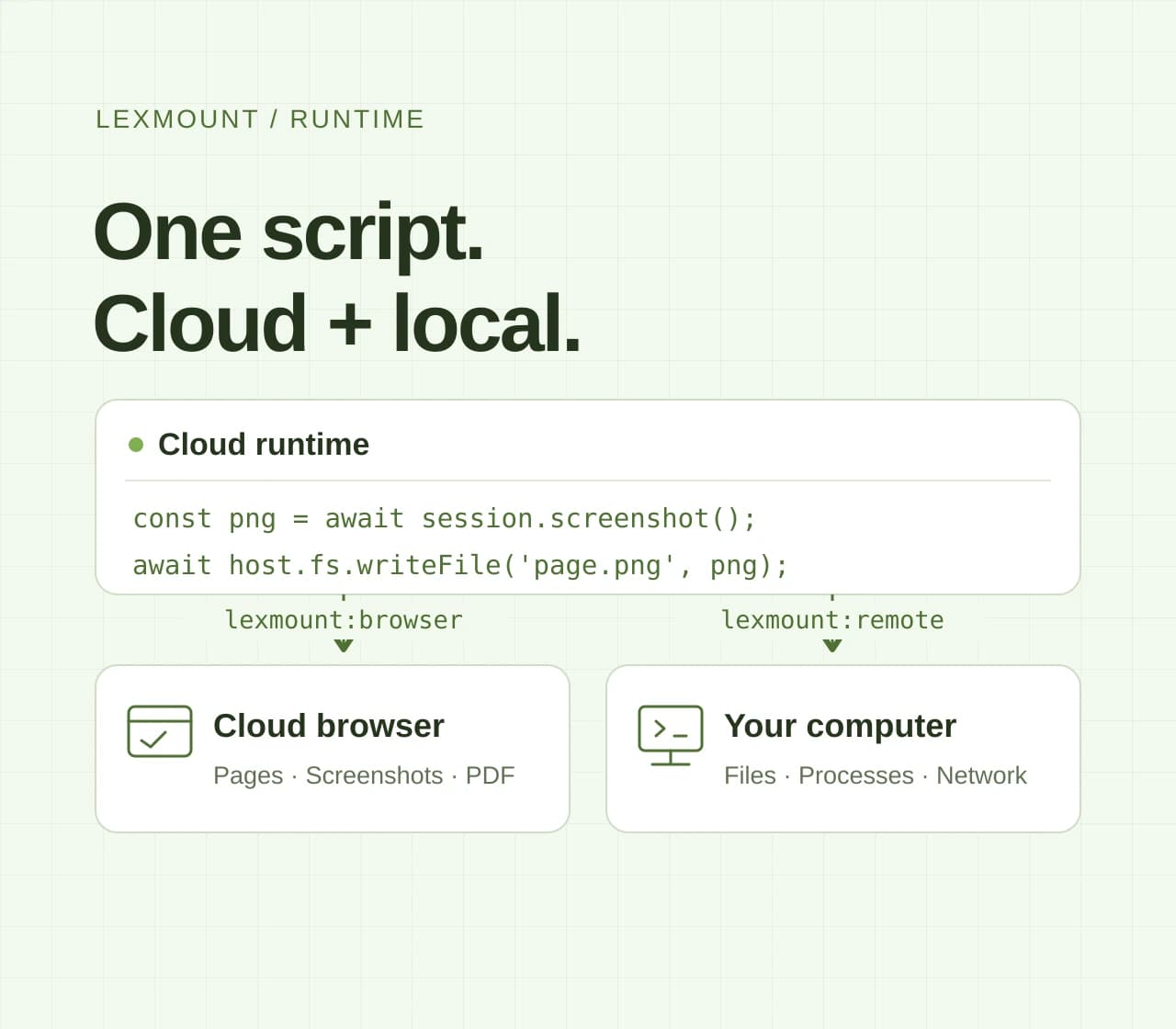
Lexmount Runtime Resources lets you save, run, and manage JavaScript tasks from the console. Review each run's output and execution history, and connect a cloud browser, files on your computer, existing programs, or services as needed.
Scripts run in the cloud. Start by calling public APIs or processing data, then connect your computer through the client when you need its files or tools. You can keep using your existing folders and programs.

Figure 1: Manage tasks from the console and combine cloud scripts, computer resources, browsers, and services. Computer resources require a connected client.
Run and manage tasks from the console
Create an instance in Instances and give it a name you'll recognize. It keeps your task code and execution records together. Run the script whenever you need it, and update the code in the same instance as the task changes.
Cloud scripts can call public HTTP APIs, process the returned text or data, and log progress and results. For example, this script reads a public page and prints its response status and character count:
const response = await fetch('https://example.com');
if (!response.ok) throw new Error(`HTTP ${response.status}`);
const text = await response.text();
console.log({ status: response.status, characters: text.length });
For your first run, follow three steps:
- Save the code. Put the script on the instance's Code tab and set a suitable maximum runtime.
- Start the task. Click “Run,” then open Overview to see the output.
- Check the execution. Review its status in Execution history and verify the result against the task's goal.
Use the instance list to filter tasks by status or stop one or more active tasks. Each run has its own record, so you can review previous runs of the same task.
Connect the files and tools you already use
Connect your laptop or server through Clients and keep the client online. Tasks can then read directories and files, save results, and run programs already installed on that machine.
An existing reporting program, conversion tool, or batch processing script can stay on the computer where you already use it. The task script sends it data and collects the result, so you can keep your folder structure and tool setup.
Choose tools you can call from a script, then use their status and output to decide what happens next. See files and processes for details.
Add a cloud browser to the task
A task can create a cloud browser or connect to an existing one. Use it to open pages, wait for specific content to appear, read information, fill in fields, and click page elements. You can also capture screenshots or export PDFs to save a record of a page.
Combine browser actions, file operations, and program calls in the same script. For example, send information from a page to an existing tool, or save screenshots and PDFs to a connected computer. Each step can pass its result to the next.
Use these operations to collect information from websites, work in browser-based applications, or archive pages in batches. For sites that require authentication, prepare a sign-in flow or reusable sign-in state for the cloud browser. See cloud browser capabilities.
Call services or provide an HTTP endpoint
Use a script to call an existing service or provide an HTTP service of your own:
- Access existing services. Call public APIs from a cloud script, or use the client to reach local or private services that the connected computer can access. This brings separate business systems into the same workflow.
- Provide a public HTTP service. Write a script that handles requests and returns responses, then let other programs call it through a public endpoint. Start the service and select “Visit” in the instance list to open that endpoint. See the service example for setup.
Start and stop services as needed, and set a maximum runtime to control how long they run. To call a private service, run the client on a computer that can reach it. For cloud browser access to private sites, follow the local proxy guide.
Configure and debug clients from the console
In Clients, check the connection status and configure file access and program execution for your task. To save files, select “Configure,” enable file writing, and check that the setting has been applied before running the task.
Use “Debug” to test an operation on its own. Choose an operation such as reading a directory, making a request, or running a program, then enter its parameters. Select “Generate code,” review the code, and select “Run debug code.” The console creates an instance and shows the output.
Check that the operation works before adding it to your task script. See client debugging and client configuration.
Review output, history, and earlier code
Open Overview to see script output and errors. Execution history records each run's status, finish time, and code. To revisit an earlier version, load the code from that run, edit it, and run it again.

Figure 2: Create a task, run it, review its records, and revise it for another run, all from the same place.
Return to the same instance to edit and rerun the task. Save files and results to a location of your choice for later use.
Status and output show how far a task has progressed. For tasks that create files, interact with pages, or call services, check the resulting files, pages, or responses to confirm they match what you expected.
A short example: organizing product information
One task can read a list of product links from your computer, collect specific fields with a cloud browser, and run your existing comparison program to save the latest records and a report of what changed:

Figure 3: Product information collection combines page data, files on your computer, existing tools, and a review of the results.
Your script and existing program define which fields to extract and how to compare the data. Once the process works, you can repeat the browsing, copying, and organizing by updating the list and rerunning the same task. Then review the changes and any items that need checking.
Choose a tool based on where the work happens
Choose based on the resources your task needs and how much work each option takes to set up and maintain.
| Option | Typical focus | What to prepare |
|---|---|---|
| n8n | Visual business workflows | Nodes, accounts, triggers |
| E2B | Independent cloud workspace | Environment, tools, input files |
| Browserbase | Browser tasks and hosted runs | Browser flow and sign-in details |
| Lexmount Runtime | Web + your computer | Script, client, permissions |
Lexmount Runtime Resources brings browser work, files on your computer, existing tools, and business services into one task. Use the resources you already have and manage the workflow from one console, where you can start tasks and review execution records.
Start with a small task whose output is easy to check, then add the files, tools, browser, or services it needs. Follow the quickstart for setup, or explore the runtime examples for more ways to combine them.