

Introduction
Ask an agent to open your company's code repository, find a project, and review its latest merge requests. The page interactions are straightforward. In a cloud browser, however, the task may stop before the first page loads: the repository is only reachable from the company network.
Your laptop can open it while connected to the corporate VPN. The cloud browser runs in a different network environment. It may not be able to resolve the internal hostname or connect to the server behind it. Passing the browser the same URL does not give it your machine's network access.
A Lexmount local proxy tunnel provides a path between these environments. Run the SDK on a machine that can reach the target, then configure a cloud browser session to send its web traffic through that machine. JavaScript execution, page interaction, and rendering remain in the cloud browser; connections to the private site originate from the SDK machine.
This article follows a visit to an internal code repository to explain the tunnel, the SDK's role, and how to add the capability to an automation script.
What Is Missing Between the Browser and the Site?
To visit a website, a browser needs to locate its server and establish a connection. Private networks often constrain both steps.
An internal repository might use a hostname configured only in the company's DNS. Once your laptop connects to the VPN, its system resolver can find that hostname and its network routes allow connections to the server. A cloud browser may fail during name resolution, or resolve an address that it cannot reach.
The request needs both an appropriate network exit and the right DNS environment. Configuring a public proxy address alone may not provide either one.
A local proxy tunnel delegates these steps to the SDK machine: destination names are resolved by that machine's operating system, and destination TCP connections are opened from that machine. Company or VPN DNS and routing can therefore participate in the connection.
“Local” means local to the SDK. The machine could be a developer laptop or a runner inside the company network. It must be able to reach the destination and make outbound connections to Lexmount's HTTPS/WSS endpoints.
More precisely, the SDK process must be able to resolve the destination name and open its TCP connection. If a local browser relies on separately configured HTTP/SOCKS proxies or a PAC script, a successful browser visit is not sufficient evidence: the SDK's destination connections do not automatically inherit those browser proxy settings.
How the Tunnel Connects the Two Environments
A tunnel is a persistent connection channel that carries forwarded data. When your program calls client.tunnels.open(), the SDK's connector connects to the Lexmount service. The call returns a tunnel object once the connector is ready.
The script then creates a cloud browser session with tunnel.id in its local proxy configuration. This associates the session's web traffic with the tunnel.

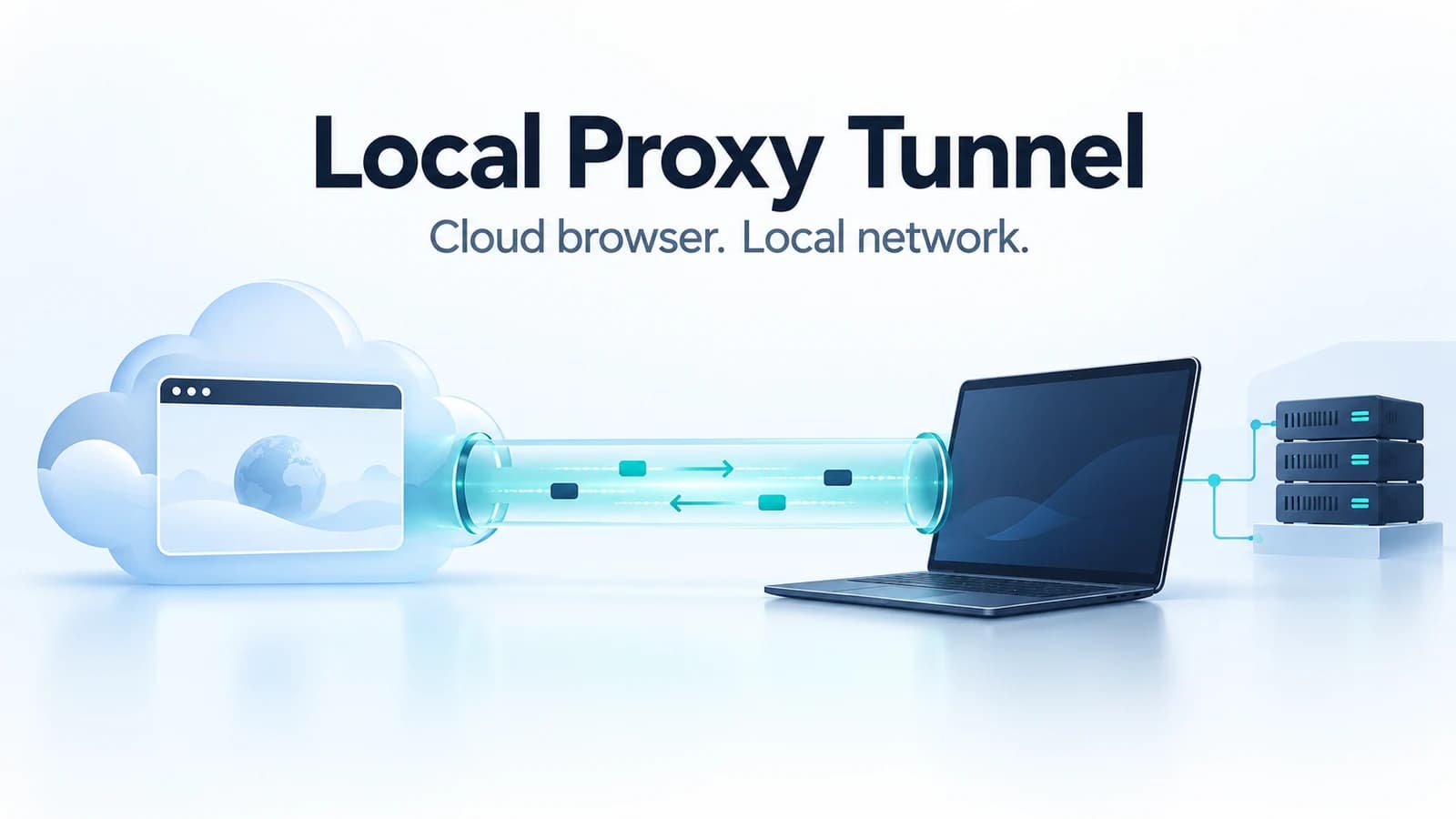
Figure 1: The local machine initiates the tunnel connection. Website requests and responses flow in both directions through it. The SDK runs inside your Python or Node.js program. The animation illustrates direction only; actual traffic can travel concurrently over multiple TCP streams.
Because the machine initiates the connection, it needs no public IP address, inbound listening port, or cloud-side hosts entry. Outbound connectivity must remain available, along with any VPN that the destination requires.
The channel carries network data generated by the browser. Navigating to a page, loading its scripts and images, and calling its APIs all produce traffic. Data can be forwarded as it arrives; the local program does not need to download an entire page before returning it to the cloud browser.
Who Does What During a Repository Visit?
Opening the repository involves two distinct kinds of work: controlling the browser and forwarding its website traffic.
| Participant | Responsibility |
|---|---|
| Your script or agent | Chooses the page and actions, then decides whether the task succeeded |
| Lexmount SDK | Establishes and maintains the tunnel, creates the session, and handles local DNS, TCP connections, and forwarding |
| An automation tool such as Playwright | Connects to the cloud browser over CDP and issues navigation, interaction, and screenshot commands |
| Cloud browser | Makes web requests, executes JavaScript, maintains page state, and renders the page |
| Internal repository | Returns pages or API data according to its own authentication and permission rules |
For example, the script calls page.goto() to navigate the cloud browser to the repository. The browser generates network traffic, which Lexmount sends through the associated tunnel to the local SDK. The SDK connects to the repository using the machine's network and forwards the returning data back through the tunnel.
After receiving HTML, the browser loads scripts, styles, and API data. Opening a project, expanding a file tree, and viewing a merge request all continue within that browser session.
The local program handles connections and forwarding; the cloud browser processes the page. There is no need to implement your own HTML downloader and parser in Python to reconstruct a page for the browser.
This workflow accesses the repository's web interface. The example does not tunnel git clone, SSH, or all traffic from applications on the machine.
From Installing the SDK to Opening a Private Page
An SDK is a code library installed in your project. Installation places files on disk. Those files participate in execution when your program imports the library and calls its methods.
For a local proxy, client.tunnels.open() starts the connector's work. Your program proceeds to create a session and operate the browser while the connector maintains the tunnel and forwards traffic. The program therefore needs to keep running for the duration of the task.
Prepare the Environment
Both the Python and Node.js SDKs support local proxy tunnels. Use version 0.6.1 or later. The project needs the custom_proxy capability, and the selected region must have local proxy enabled. The tunnel and session must use the same project, API key, and region; the example reuses one client to keep those settings consistent.
On a machine that can reach the destination, use Python 3.10 or later to prepare a virtual environment for this example, which includes Playwright:
python3 -m venv .venv
source .venv/bin/activate
python3 -m pip install --upgrade 'lexmount>=0.6.1' playwright
These shell commands target macOS/Linux. Set LEXMOUNT_API_KEY and LEXMOUNT_PROJECT_ID as described in the Python quickstart. Set LEXMOUNT_REGION if you need a specific region. Supply credentials through environment variables rather than embedding them in the script.
Open the Tunnel, Create a Session, and Navigate
Save the following as visit_internal_site.py:
import os
from urllib.parse import urlsplit

from lexmount import Lexmount
from playwright.sync_api import sync_playwright


def main():
    target = os.environ["TARGET_URL"]
    parsed = urlsplit(target)
    if parsed.scheme not in ("http", "https") or not parsed.hostname:
        raise ValueError("TARGET_URL must be an HTTP(S) URL")

    region = os.getenv("LEXMOUNT_REGION") or None
    with Lexmount(region=region) as client:
        with client.tunnels.open() as tunnel:
            with client.sessions.create(
                browser_mode="normal",
                proxy={"type": "local", "tunnel_id": tunnel.id},
            ) as session:
                print("Session ID:", session.id)
                with sync_playwright() as playwright:
                    browser = playwright.chromium.connect_over_cdp(
                        session.connect_url
                    )
                    try:
                        if not browser.contexts:
                            raise RuntimeError("No browser context available")

                        context = browser.contexts[0]
                        page = (
                            context.pages[0]
                            if context.pages
                            else context.new_page()
                        )
                        page.goto(
                            target,
                            wait_until="domcontentloaded",
                            timeout=60_000,
                        )
                        print("Page title:", page.title())
                        page.screenshot(path="internal-site.png")
                    finally:
                        browser.close()


if __name__ == "__main__":
    main()
Replace the example address below with an actual HTTP(S) URL you are authorized to access and that the SDK machine can reach, then run the script:
export TARGET_URL='https://git.corp.example/team/project'
python3 visit_internal_site.py
There are three explicit stages: tunnels.open() establishes the tunnel, sessions.create() creates a normal browser session using it, and page.goto() initiates navigation. The browser runs in the cloud and is connected over CDP, so this example does not require a local Chromium installation.
The script prints the session ID and page title, saves a screenshot to the local file internal-site.png, and runs cleanup. Add further repository operations inside the same browser connection and session scope if the task needs to continue.
Navigation completing does not establish that the repository is logged in. A valid HTTP 404 or 500 response does not necessarily make page.goto() throw, and domcontentloaded does not mean all resources or application data have loaded. The screenshot may show a sign-in page, an error page, a permission message, or an application that is still loading. A real task must check the response status, wait for the relevant elements, and verify that the current account can see the intended project.
Use Node.js or a Maintained Example
The Node.js flow is the same: call client.tunnels.open(), then create a browserMode: 'normal' session with proxy: { type: 'local', tunnelId: tunnel.id }. The local proxy guide includes complete code and cleanup handling.
You can also run a maintained example. After completing the Node.js examples setup, run:
npm run local-proxy-demo -- --url 'https://git.corp.example/team/project'After completing the Python examples setup, use:
python3 local_proxy_demo.py --url 'https://git.corp.example/team/project'Run these commands inside their respective example repositories. Installing the SDK alone does not create the scripts. Both examples accept the target through --url and capture a screenshot. In an interactive terminal, they wait for a keypress before cleaning up.
Give the Tunnel the Same Lifecycle as the Task
A task uses at least four resources: an SDK client, a tunnel, a cloud browser session, and an automation connection. The Python example uses nested with blocks and finally to establish them in dependency order and run cleanup in reverse: close the browser connection, request cloud-session closure, close the tunnel, then close the SDK client.
Cleanup follows this order even if navigation fails, but running cleanup does not prove that remote resources have been released. In SDK 0.6.1, session.close() logs some close failures as warnings, and server-side shutdown may complete asynchronously. Closing only the automation connection or tunnel does not replace closing the cloud browser session or prove that session billing has stopped.
If session creation times out, the server may already have allocated a session before the program enters its with block. In that case, or after a forced termination or close warning, use the exception details, any printed session ID, and the console to check the final state. Clean up leftover sessions before deciding whether to retry. See session lifecycle and cleanup.
What Recovers After a Disconnect?
Automatic reconnection of an established tunnel is enabled by default. A disconnect fails existing TCP streams. If the tunnel remains valid and network connectivity and credentials permit reconnection, new connections can use it once it reconnects. The connector does not resume interrupted TCP streams, replay requests, or switch to cloud DNS or another proxy. Retry behavior in the browser, page code, or task framework is separate; the connector's lack of replay does not guarantee that the overall task can never execute an action twice.
This distinction matters for writes. If the network drops while submitting a repository comment, the absence of a response does not prove the server failed to save it. Check the actual result before retrying to avoid a duplicate submission.
A ready tunnel, a created session, and a completed business operation are separate milestones. To investigate connection problems, first verify the destination's DNS and port from the SDK machine, then check tunnel readiness, and finally inspect the cloud browser's page. See local proxy troubleshooting for specific errors and checks.
What Network Access Does Not Carry With It
Local proxy tunnels support HTTP, HTTPS, WS, and WSS browser traffic over TCP. They are a proxy option for normal cloud browser sessions. Light/Moli sessions do not currently support this mode, and the separate Web Fetch API does not inherit the tunnel's private-network access.
Keep these distinctions in mind when integrating the feature:
- Connectivity and login state: the tunnel does not copy cookies or logged-in accounts from a local browser. Authenticate in the cloud browser or reuse an appropriate persistent Context according to the site's requirements.
- Connectivity and certificate trust: a private CA trusted by your machine is not automatically trusted by the cloud browser. Corporate certificates still need to be handled correctly in the cloud browser workflow.
- Network exit and processing location: the SDK machine connects to the target, but responses travel to the cloud browser for processing and rendering. Select tasks and data within your organization's permitted scope.
- Proxy selection and project allowances: local, external, and official proxies are mutually exclusive. Local egress is accounted for separately from official-proxy traffic; browser time, concurrency, and project capability limits still apply.
A tunnel also has its own lifetime and concurrent connection limit. These differ from browser-session quotas. Check the current tunnel options and lifecycle before integrating long-running tasks.
Bring Private Sites into an Existing Browser Workflow
Local proxy tunnels fit tasks where a site is already reachable from a machine, while browser execution should remain in the cloud: company code repositories, internal applications, test environments behind a VPN, and development sites reachable from a runner.
After integration, the script continues to navigate, read, click, and capture screenshots through familiar automation interfaces. The change is concentrated in session setup: prepare a tunnel and select it as the browser's network exit.
Start with a page that the SDK machine can already reach. Verify that the cloud browser opens it, complete authentication, then add the operations required by the real task. The connection between local networking and cloud execution gives a workflow that previously stopped at the private-network boundary a path forward.
For complete setup instructions, see the local proxy guide. For proxy selection, see configure a browser proxy.