
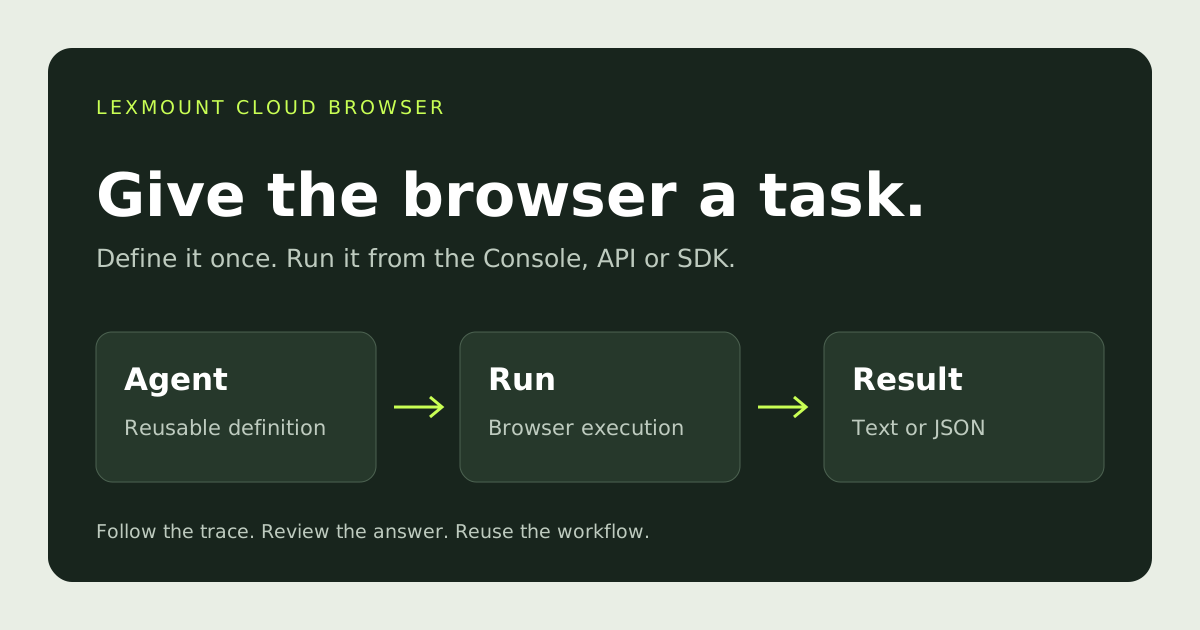
Give the browser a task
Today, we’re introducing Lexmount Cloud Browser Agent: describe a task, let an Agent work through the browser, and collect the result. The Console brings the task definition, execution trace, browser view, and answer into one workflow. The API and SDK let you bring that workflow into an application.
A long conference schedule is a familiar example. You filter by topic, open session details, check the time and room, and copy the useful entries into a shortlist. The information is public, but collecting it still takes a sequence of browser interactions.
We’ll use the official KubeCon + CloudNativeCon North America 2026 schedule to find three observability sessions. The task stays on one website and returns published session titles, times, rooms, and source links. We’ll define the rules once, start a Run, inspect the work, and retrieve the answer from code.
Agent and Run
An Agent is a saved task definition. It contains a name, fixed requirements, an optional default starting URL, and an optional JSON Schema for structured output. The fixed requirements are the instruction that guides every task using that Agent.
A Run is one execution. It has a task goal, status, execution trace, browser view, and result. Each Run keeps the Agent configuration version used when it started. Editing an Agent changes future Runs while preserving earlier Runs’ configuration snapshots.
| Agent | Run | |
|---|---|---|
| Purpose | Reusable task definition | One execution |
| Console inputs | Name, fixed requirements, optional default URL and JSON Schema | Agent, optional query and starting URL |
| What to review | Configuration and Run history | Status, input snapshot, Actions, browser view and result |
The Console walkthrough below starts with a saved Agent. An ad-hoc Run can also use the standard Browser Agent without saving an Agent first; the API and SDK section shows how to submit that task directly.
Cloud Browser Agent runs the task for you. Lexmount’s Skill and CLI are another way to use the browser: they provide tools to an existing coding agent that you operate. The launch described here is the managed Agent-and-Run workflow.

Create an Agent in the Console
Open Browser Agent → Agents, then choose Create Agent. For this example, enter Conference session finder as the name. Creating the Agent saves its configuration; it does not start a task.
Set the fixed requirements
Name and Fixed requirements are required. The name helps you find the Agent later. Fixed requirements explain the recurring job, source rules, and what a complete result should contain. For our session finder:
Use the official conference schedule to find sessions matching the topic and maximum count in the task query. Open session details to verify each title, start and end time, room, and source URL. Keep the published timezone. Overlapping sessions are allowed in the shortlist. Use only this website, and skip sessions whose required details cannot be verified.
The instruction defines the checks that make the result useful. The topic and requested count will go into the Run’s Query, so the same Agent can be reused for another topic. You don’t need to describe every click in advance.
Set the default starting URL
Default starting URL (optional) gives future Runs a place to begin. Set it to the official KubeCon schedule linked above.
A Run’s Starting URL overrides this default when supplied. Leave the Run field empty to reuse the Agent’s URL. If neither is supplied, the Agent must infer a starting point from the task. Give it a URL when you already know the source; this makes the intended scope clearer.
Enable structured output when you need it
Leave Use structured output (optional) off for a free-form answer. Turn it on to reveal Output JSON Schema. The editor accepts JSON Schema Draft 2020-12 with an object at the root, a maximum size of 16 KiB and a maximum nesting depth of 16. References must be local and acyclic.
For this task, define an object with a sessions array. Each entry contains title, starts_at, ends_at, room, and url. Field descriptions tell the Agent what belongs in each value. Times include the published UTC offset so another program can interpret them correctly.
View the complete output schema
{
  "type": "object",
  "properties": {
    "sessions": {
      "type": "array",
      "description": "Verified sessions matching the requested topic, up to the requested limit.",
      "items": {
        "type": "object",
        "properties": {
          "title": {
            "type": "string",
            "description": "Session title as published on the official schedule."
          },
          "starts_at": {
            "type": "string",
            "description": "Published start time in ISO 8601 with UTC offset."
          },
          "ends_at": {
            "type": "string",
            "description": "Published end time in ISO 8601 with UTC offset."
          },
          "room": {
            "type": "string",
            "description": "Published venue, level, and room."
          },
          "url": {
            "type": "string",
            "description": "Official URL that opens this session\u2019s details."
          }
        },
        "required": [
          "title",
          "starts_at",
          "ends_at",
          "room",
          "url"
        ],
        "additionalProperties": false
      }
    }
  },
  "required": [
    "sessions"
  ],
  "additionalProperties": false
}
Choose Create Agent to save. On the Agent detail page, Configuration shows its saved definition; Run history shows executions using that Agent. Edit configuration updates the reusable definition for future Runs. The Agent ID and version identify which definition a Run used.
Start a Run in the Console
Choose Run from the Agent’s detail page or list row. You can also open Runs → Create Run and select the Agent in the dialog.
The dialog has three inputs: Agent, Query (optional), and Starting URL (optional). Select Conference session finder, then enter this query:
Find up to three observability sessions. Return their titles, start and end times, rooms, and official session links.
Leave Starting URL empty to use the saved schedule URL. The Query adds the specific goal for this execution. It can be left empty when the Agent’s fixed requirements already describe a complete task; our reusable instruction expects a topic and count, so we supply them here.
Choose Start Run, then keep its Run ID. Closing the page does not cancel execution. Return to Runs to find the same task by its goal or Run ID, or filter the list by Agent and status. Submitting the task again starts another Run.
Read the Run details
The detail page shows the task goal, status, Run ID, source, creation time, elapsed time, and Action count. Expand Input and configuration snapshot to review the task goal, starting URL, fixed requirements, and Agent version recorded for that execution.
The main work area puts Execution trace beside the browser panel. The result and stop reason appear with the Run’s outcome. This keeps the task’s inputs, browser work, and answer together.
Follow Actions in the execution trace
An Action is an operation attempted during the Run, such as opening a page, clicking a filter, entering text, or waiting for content. The trace displays the readable operation, its status, timestamp, and available result or error information. Recent events appear first; Load earlier events appears when more history is available.
For the conference task, opening the schedule, choosing a topic filter, and opening a session detail are separate Actions. A successful click confirms that operation’s outcome. Use the Run’s status and result to decide whether the complete task met your goal.
An Action can update as execution proceeds. A failed attempt can also be followed by a successful recovery. Read it in context rather than treating every individual Action failure as the final task outcome.
Preview the browser during execution
The browser preview lets you follow an active Run without starting another task. Compare what is visible with the latest trace entries: whether the filter changed the list, whether session details opened, and whether the Agent can read the requested information.
The browser view is read only. It is useful for understanding progress; manual takeover is not part of this workflow. Preview availability follows the Run’s state and connection, so the trace remains useful when the browser view is unavailable.
Review the result and recording
When execution ends, read Result and Stop reason. With structured output enabled, the result contains the session data described by the saved schema. A free-form Agent can return a readable text answer. Check that the returned information meets your task’s requirements, especially when a Run ends early.
Recording is the replay view on the Run detail page. When the recording is ready, use its playback controls and timeline to review the browser task, or choose Full screen. If a task opened multiple browser tabs and recordings are available, use Browser tab to select one. Replaying a recording does not repeat the website operations.
Recording processing can finish after execution. You can still inspect the trace and result while waiting. The trace timestamps and video help explain the same task from two perspectives: what operation the Agent attempted and what the browser displayed.
View an example structured result
Illustrative output based on the official schedule, checked on October 24, 2026; this is not a captured Run result. The program may change. Times below use MST (UTC−07:00).
{
  "sessions": [
    {
      "title": "OTel Blueprints: Prescriptive Patterns for Enterprise Observability",
      "starts_at": "2026-11-11T11:00:00-07:00",
      "ends_at": "2026-11-11T11:30:00-07:00",
      "room": "Hyatt Regency | Level 4 | Regency Ballroom B-D",
      "url": "https://events.linuxfoundation.org/kubecon-cloudnativecon-north-america/program/schedule/?id=1249846"
    },
    {
      "title": "Filter, Transform, Route: Mastering OTTL in the OpenTelemetry Collector",
      "starts_at": "2026-11-11T11:00:00-07:00",
      "ends_at": "2026-11-11T12:20:00-07:00",
      "room": "Hyatt Regency | Level 4 | Regency Ballroom A",
      "url": "https://events.linuxfoundation.org/kubecon-cloudnativecon-north-america/program/schedule/?id=1249896"
    },
    {
      "title": "OpenFeature as a Control Plane for OpenTelemetry",
      "starts_at": "2026-11-12T15:30:00-07:00",
      "ends_at": "2026-11-12T16:00:00-07:00",
      "room": "Hyatt Regency | Level 4 | Regency Ballroom B-D",
      "url": "https://events.linuxfoundation.org/kubecon-cloudnativecon-north-america/program/schedule/?id=1246551"
    }
  ]
}
How the Agent understands the page
Behind the execution loop is CAE — Content, Action, Effect. The protocol provides a browser-native representation of page content and usable controls, the operations available on those controls, and the changes observed after an operation.
For example, the Agent can identify a session entry, open its details, and use the newly visible information for its next decision. It reasons about these observations alongside the task and progress so far, until it can return the requested result or reaches a stopping condition.
CAE supports the browser interaction; the Agent still needs to assess whether its answer satisfies the task. For the rendering and interaction design, read CAE Protocol: Redesigning Browser Interaction for AI Agents.
Use the same workflow from the API or SDK
Use your existing Lexmount API key and Project ID. The examples below follow the Browser Agent Node.js Browser Agent reference and Python Browser Agent reference: they select the saved Agent and pass the same query used in the Console. Replace the Agent ID and read credentials from your environment. The examples use the published lexmount 0.7.0 SDKs and their default COM endpoint, https://api.lexmount.com. Set LEXMOUNT_API_KEY, LEXMOUNT_PROJECT_ID and LEXMOUNT_AGENT_ID locally. The fixed idempotency key below identifies this example task; change it for a new task.
Install Python with pip install lexmount==0.7.0, or Node.js with npm install [email protected]. The Node.js example is TypeScript.
HTTP
# 1. Create a Run using your saved Agent.
curl -X POST "https://api.lexmount.com/v1/browser-agent/runs" \
  -H "API-Key: $LEXMOUNT_API_KEY" \
  -H "Project-Id: $LEXMOUNT_PROJECT_ID" \
  -H "Idempotency-Key: conference-shortlist-001" \
  -H "Content-Type: application/json" \
  -d '{
    "agent_id": "YOUR_AGENT_ID",
    "query": "Find up to three observability sessions. Return their titles, start and end times, rooms, and official session links."
  }'

# 201 Created
# {"request_id":"req_...","data":{
#   "id":"run_...","status":"queued","created_at":"..."
# }}

# 2. Poll using the data.id returned above.
curl "https://api.lexmount.com/v1/browser-agent/runs/YOUR_RUN_ID" \
  -H "API-Key: $LEXMOUNT_API_KEY" \
  -H "Project-Id: $LEXMOUNT_PROJECT_ID"

# Stop polling at succeeded, failed, timed_out, or cancelled.
# Read data.output on success; data.error on failure.
Python
import os
from lexmount import Lexmount

client = Lexmount(
    api_key=os.environ["LEXMOUNT_API_KEY"],
    project_id=os.environ["LEXMOUNT_PROJECT_ID"],
)

receipt = client.browser_agent.runs.create(
    agent_id=os.environ["LEXMOUNT_AGENT_ID"],
    query=(
        "Find up to three observability sessions. Return their titles, "
        "start and end times, rooms, and official session links."
    ),
    idempotency_key="conference-shortlist-001",
)

run = client.browser_agent.runs.wait(receipt.id, timeout=1500)
if run.status == "succeeded":
    print(run.output)  # Parsed object, or text without a schema.
else:
    print(run.status, run.stop_reason, run.error)
    print(run.created_request_id)
TypeScript
import { Lexmount } from "lexmount";

const client = new Lexmount({
  apiKey: process.env.LEXMOUNT_API_KEY!,
  projectId: process.env.LEXMOUNT_PROJECT_ID!,
});

const receipt = await client.browserAgent.runs.create(
  {
    agent_id: process.env.LEXMOUNT_AGENT_ID!,
    query: "Find up to three observability sessions. Return their titles, " +
      "start and end times, rooms, and official session links.",
  },
  { idempotencyKey: "conference-shortlist-001" },
);

const run = await client.browserAgent.runs.wait(receipt.id, {
  timeoutMs: 1_500_000,
});
if (run.status === "succeeded") {
  console.log(run.output); // Parsed object, or text without a schema.
} else {
  console.error(run.status, run.stop_reason, run.error);
  console.error(run.created_request_id);
}
Creating a Run returns an acceptance receipt and Run ID. Retrieve the Run to read its current Actions, status, and final output. The SDK’s wait() method handles polling. A local waiting timeout ends the wait without cancelling the cloud task.
Terminal task states are returned normally by wait(); an unsuccessful task is not itself an HTTP API error.
The Console labels a successful execution Completed; the API represents a successful Run as succeeded. An integration should also handle failed, timed_out, and cancelled, rather than treating every accepted request as a completed task.
Start without a saved Agent
For an ad-hoc task, omit agent_id and provide a nonempty query, plus start_url when you know the source. This uses the standard Browser Agent for one Run. It returns free text; use a saved Agent when you need a reusable JSON Schema.
POST /v1/browser-agent/runs
{
  "query": "Find up to three observability sessions. Return their titles, start and end times, rooms, and official session links.",
  "start_url": "https://events.linuxfoundation.org/kubecon-cloudnativecon-north-america/program/schedule/"
}
Use the API or SDK for this ad-hoc flow. In the Console, start by selecting a saved Agent.
Keep task inputs and diagnostics together
The Run creation API accepts agent_id, query, start_url, variables, and metadata. The Console example uses an ordinary query. Template variables, when used in an Agent’s instruction through the API, are filled by variables; they are separate from the current Console’s three-input Run dialog. Metadata stores application labels and is not model input.
Persist an idempotency key and reuse it with the same request body when retrying a creation request; use a new key for a new task. Once you have a Run ID, resume with get() or wait() instead of creating another Run. Keep the creating API key valid through execution and cleanup. Keep the Run ID and created_request_id for diagnostics. Each HTTP response also contains its own request_id, which helps support trace a later retrieval as well as the original task submission.
The Run resource provides programmatic progress and results, including its Actions. Keep error and stop_reason when a task stops unexpectedly. usage.credits may be null while metering is unconfirmed; this does not mean zero credits or free execution. usage.duration_ms reports task duration; browser time is accounted for separately against the browser plan or add-on balance. The reference explains field limits, cancellation, errors, and SDK waiting behavior.
Start with one task
Create an Agent with clear fixed requirements, add the source URL, and choose the result format you need. Start a Run with a specific goal, inspect its trace and result, then reuse the definition for the next task.
When you’re ready to integrate, keep that Agent ID and move the same query into the API or SDK. You get a Run that your application can track while the Console gives you a place to inspect how the work was carried out.
Let the browser do the next task.